Submissions, Instantly in Slack
Send real-time Slack notifications the moment someone submits a form, routed to any channel, with @mentions and submission data built in.
Risk-Free 14 Day Guarantee
You'll love it or we'll refund you fully. No questions asked.
The Slack add-on for Ninja Forms sends a real-time notification to your Slack workspace the moment someone submits a form on your WordPress site. No polling, no delay, no third-party relay service in between. Your team sees the submission in Slack immediately, in the channel where they’re already working.
With the Slack add-on, you can:
Key Features
Real-Time Alerts
Post a Slack notification the instant a form is submitted, with no delay and no polling.
Channel Routing
Send different forms to different Slack channels: #sales, #support, #ops, or any channel you choose.
@Mention Support
Include @mentions for team members or user groups so the right person is alerted on every submission.
Merge Tag Messages
Pull submitted form data directly into the Slack message body using merge tags, so notifications show actual submission content.
Webhook Setup
Connects via Slack’s Incoming Webhooks in minutes, with no OAuth approval process and no third-party service required.
Per-Form Control
Configure Slack notifications independently on each form, with its own channel destination and message format.
Key Features of the Slack Add-On
Real-time Slack notifications on every form submission
When a visitor submits a form, a message posts to your chosen Slack channel instantly. There is no batch processing, no scheduled check-in, and no dependency on a third-party automation service. The notification fires the moment the submission lands, so your team is never waiting on form data that already exists.
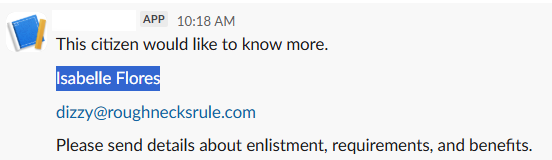
Channel and workspace control
Each Slack action you configure points to a specific webhook URL, which maps to a specific channel in your workspace. A contact form can post to #support. A quote request form can post to #sales. An internal HR form can post to a private channel. You are not limited to one destination for all your forms.
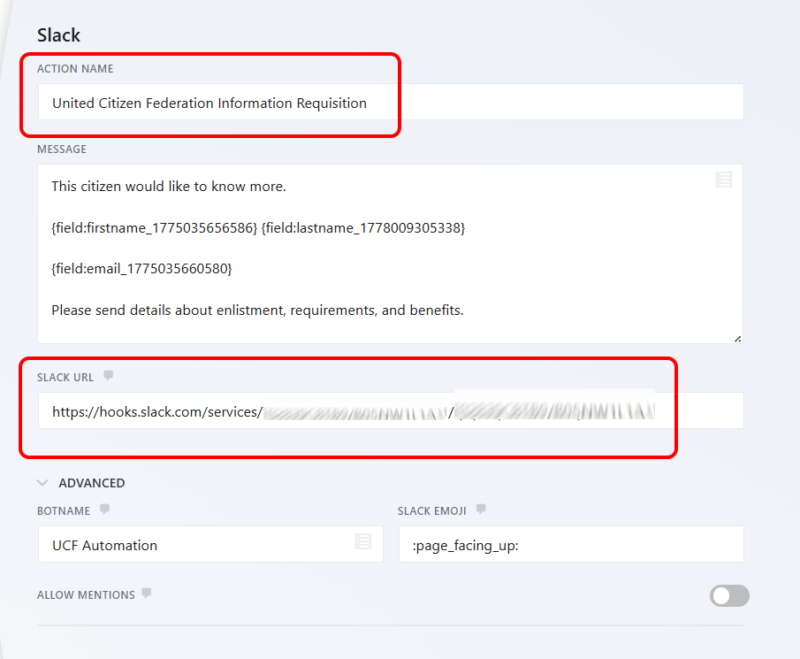
@mention team members in notifications
Include @mentions for specific team members or user groups directly in your message template. When a high-priority lead comes in, the right person gets pinged immediately rather than hoping they scroll back through the channel. Use @channel, @here, or any individual handle your workspace supports.
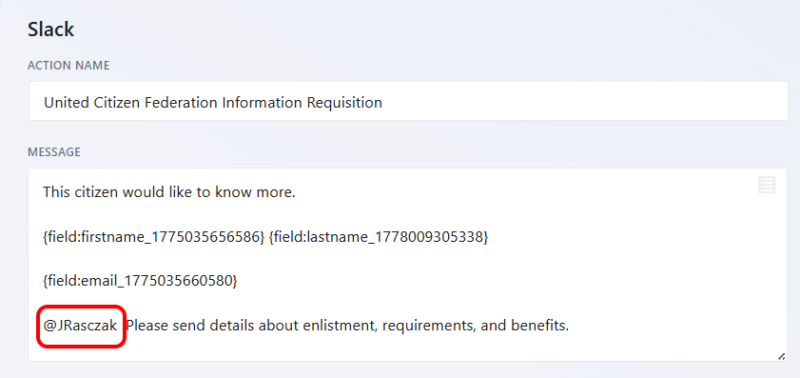
Customizable message content with merge tags
The Slack message body is a free-form text field that supports Ninja Forms merge tags. Pull in the submitter’s name, email address, message, selected options, or any other field value directly into the notification. Your team reads the actual submission data in Slack without opening WordPress or checking their email.
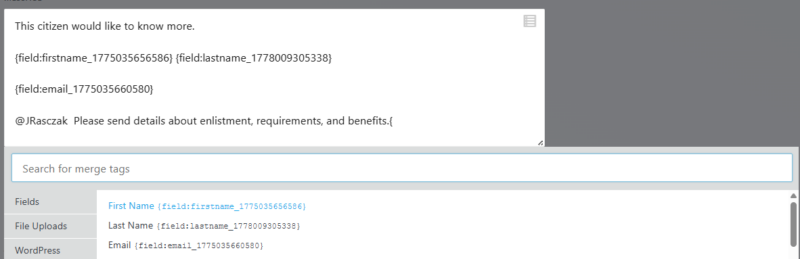
Webhook-based connection, no OAuth required
The add-on connects via Slack’s Incoming Webhooks. You create a webhook in your Slack workspace settings, copy the URL, and paste it into the form action. No OAuth app approval process, no Slack app review, no third-party service sitting between your form and your channel. Setup takes a few minutes in Slack admin and works immediately.
Per-form granular control
The Slack notification is an action you add to individual forms, not a site-wide setting. Each form has its own action configuration with its own webhook URL and message template. One form can notify #sales with a lead summary. Another can notify #support with a ticket-style format. A third can stay silent entirely. You configure each form independently to match how your team actually operates.
Know the moment someone submits
Send any form submission to a Slack channel as it happens, with the data included and the right teammate tagged, so nobody has to watch a dashboard. Add it to your cart and start routing submissions into Slack.
Backed by priority email support and a 14-day money-back guarantee.
Route Form Notifications to the Right Slack Channel
One of the most practical uses of this WordPress Slack integration is routing different form submissions to the teams that need to act on them. Because the Slack action is configured per-form, you have full control over which channel receives which notification.
A few examples of how teams set this up:
- A lead capture form posts to #sales with the prospect’s name, company, and inquiry, so sales reps can follow up within minutes.
- A support request form posts to #support with the customer’s issue and contact details, routing directly to the team that owns the queue.
- An internal operations form posts to #ops or a private channel, keeping internal requests out of customer-facing channels.
- A high-value inquiry form uses an @mention to ping a specific team member so nothing falls through the cracks.
This is the core of the “notify sales team in Slack” use case: your team gets the notification in the right place, with the right data, the moment it happens.
How to Connect Slack to Your WordPress Forms
The setup process is straightforward and does not require developer access or a Slack app submission.
- Install and activate the Slack add-on from your Ninja Forms account.
- Go to api.slack.com, open your workspace, and create a new app from scratch.
- Enable Incoming Webhooks in the app settings and authorize it for the channel you want to receive notifications.
- Copy the webhook URL Slack provides.
- Open any form in Ninja Forms, go to the Emails and Actions tab, and add a Slack action.
- Paste the webhook URL, write your message using merge tags to include form field data, and publish the form.
Submit a test entry and the notification will appear in your Slack channel within seconds. Repeat the process for any additional forms, using a different webhook URL to target a different channel if needed.
Common Use Cases
- Notify your sales team the moment a lead comes in: Post lead form data to your sales channel so reps can follow up immediately instead of waiting on email forwarding or CRM sync delays.
- Turn support requests into Slack alerts: Route contact and support forms to your helpdesk channel with all the context your team needs to respond without opening a separate inbox.
- Keep operations informed on internal requests: Send internal request forms to private ops or admin channels so staff submissions reach the right people without cluttering shared inboxes.
- Alert the right person on high-priority submissions: Use @mentions in your message template to ping a specific team member when a VIP inquiry, enterprise lead, or urgent request comes in.
- Monitor event registrations and sign-ups in real time: Post registration form submissions to a channel your events team watches, with attendee details visible directly in the message.
- Connect WordPress forms to a broader Slack workflow: Because notifications arrive in Slack channels your team already uses, form data flows naturally into existing conversation threads and response workflows without adding a new tool.
Hot leads hit Slack before they hit your inbox
Drop every inquiry and quote request into your sales channel the second it arrives, tag whoever owns it, and respond while the lead is still warm. Add it to your cart and put your team on every lead faster.
Priority email support and a 14-day money-back guarantee included.
Frequently Asked Questions
-
Install the Ninja Forms Slack add-on, create an Incoming Webhook in your Slack workspace settings at api.slack.com, and paste the webhook URL into the Slack action on any form. When the form is submitted, a notification posts to your chosen channel immediately. No developer access or OAuth approval is required.
-
Yes. The Slack message field is free-form text, so you can include @mentions for individual team members, @here, or @channel directly in your message template. The @mention is included in every notification that fires for that form.
-
Add the Slack action to your contact form in the Ninja Forms builder, enter the webhook URL for your target Slack channel, and write a message using merge tags to include the submitter's name, email, and message. Publish the form and the connection is live.
-
Yes. Each form has its own Slack action with its own webhook URL, which maps to a specific Slack channel. Your lead form can post to #sales, your support form can post to #support, and an internal form can post to a private channel, all independently configured.
-
No. The add-on connects directly to Slack via Incoming Webhooks. There is no third-party automation service, no Zapier account, and no additional subscription needed. The connection is between your WordPress site and Slack only.
-
Any field in your form can be pulled into the Slack message using merge tags. Name, email address, phone number, message body, dropdown selections, and any custom field you have built into the form are all available to include in the notification text.
-
The Slack add-on is included with the Pro and Elite memberships. It is also available as a standalone purchase if you only need the Slack integration without a full membership plan.
-
Licenses are subscription based and will auto-renew each year unless cancelled. If cancelled, you may still use your extensions but will no longer receive important updates or support once the license expires.